
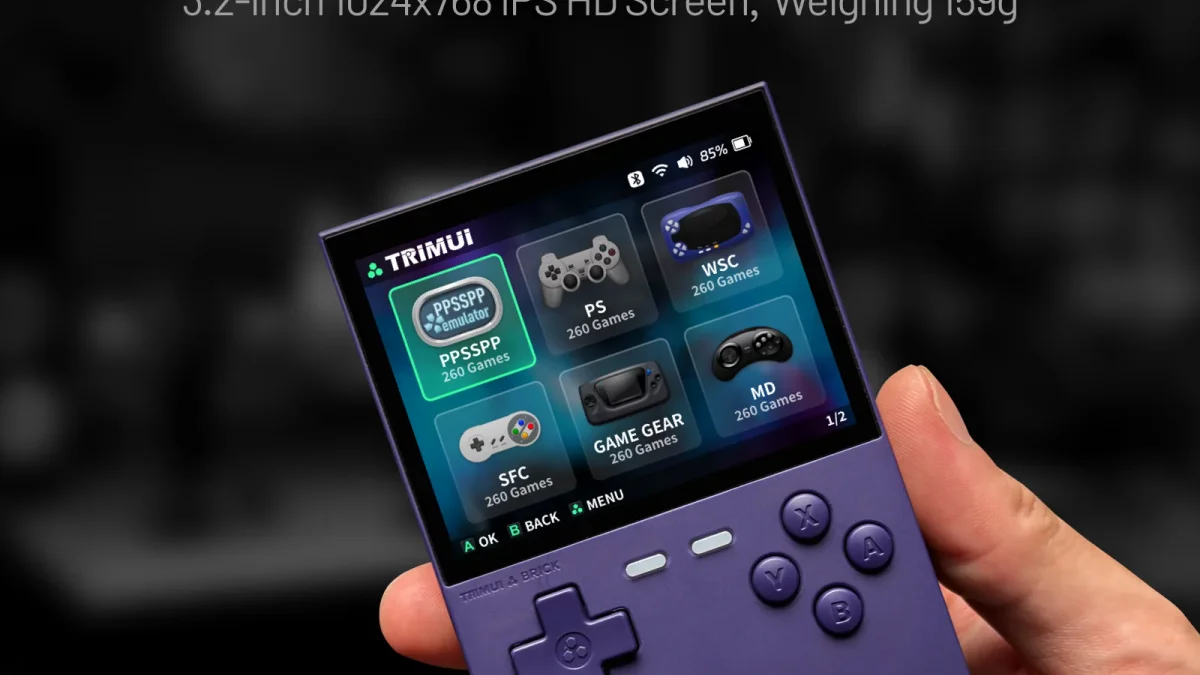
MinUI is a focused, minimalist game launcher designed for retro handhelds that prioritizes simplicity and immediate gameplay over visual complexity. Created by developer Shaun Inman in 2021, MinUI strips away the configuration overhead and visual clutter found in many custom firmware alternatives, delivering a clean interface that gets you playing games within seconds of powering on your device source.
What Is MinUI and Why It Exists
MinUI was born from a simple philosophy: retro gaming should be about the games, not the interface. Unlike feature-heavy alternatives that bombard users with box art, metadata, and complex menu systems, MinUI presents your game library as a straightforward text list. There are no background images, no scraping requirements, and no visual distractions—just your games, organized by system, ready to launch.
The launcher was originally developed for the TrimUI Model S in 2021 and has since expanded to support dozens of devices. Its design philosophy makes it particularly ideal for gifting to non-technical users or anyone who wants a "pick up and play" experience without navigating through multiple menu layers. As one enthusiast noted, MinUI is perfect for those who want "immediate gameplay without menu navigation complexity" source.
Which Devices Support MinUI
MinUI supports an impressive range of retro handhelds across multiple manufacturers. Compatible devices include:
Anbernic devices: RG28XX, RG34XX, RG34XXSP, RG35XX, RG35XX Plus, RG35XXH, RG35XXSP, RG40XXH, RG40XXV, RG CubeXX
Miyoo devices: Miyoo A30, Miyoo Flip, Miyoo Mini, Miyoo Mini Flip, Miyoo Mini Plus
TrimUI devices: TrimUI Brick, TrimUI Smart, TrimUI Smart Pro
Other supported devices: GKD Pixel, M17, MagicX XU Mini M, MagicX Mini Zero 28, Powkiddy RGB30
Each MinUI release includes device-specific instructions in a dedicated readme file, ensuring proper installation and configuration for your specific handheld source.
Key Features and Benefits
MinUI's feature set is intentionally minimal but thoughtfully implemented:
Zero-Configuration Gameplay: MinUI requires no complex setup. Drop your ROMs into appropriately named folders and start playing. The launcher automatically detects supported systems and displays them in a clean, text-based menu.
Smart Organization Tools: While visually simple, MinUI offers powerful organization options. Users can prefix folders with numbers (0), 1), etc.) to customize menu order, add .disabled extensions to hide folders from the main menu, or consolidate related systems (like Sega CD and 32X into the Sega Genesis folder). The map.txt feature allows renaming folders for display purposes without changing actual folder names source.
Collections System: Create custom game collections by placing text files in a Collections folder, listing full paths to games. This enables curated lists like "Best Platformers" or "Weekend RPGs" that span multiple systems.
Quicksave and Resume: Hold the power button to create a quicksave and power off simultaneously. The device automatically resumes this save state on next boot, effectively creating a "sleep and resume" experience across sessions.
Hidden Box Art Support: As an undocumented feature, MinUI supports box art by creating .res folders with PNG images named identically to ROM files. While not officially supported, this Easter egg allows visual customization for users who want it source.
How to Install and Set Up
Installing MinUI is straightforward but requires attention to SD card formatting:
SD Card Requirements: Cards 32GB and smaller can be used as-is or formatted with SD Card Formatter. Cards larger than 32GB must be formatted to FAT32 using Rufus (Windows) or Disk Utility (Mac). Recommended cards include Samsung Pro Endurance, SanDisk Extreme (64GB), or Samsung EVO Select, SanDisk Ultra (128GB) source.
Installation Steps:
- Download both the BASE and EXTRAS packages from the MinUI GitHub releases page
- From BASE: Move the
Bios,MinUI.zip,Roms,Savesfolders and the device-specific folder (e.g., "miyoo" for Miyoo Mini) to your SD card root - From EXTRAS: Move all contents to the SD card root, merging folders when prompted
- Add BIOS files to the appropriate
Bios/subfolders (case-sensitive filenames required) - Create ROM folders using the format
System Name (EMULATOR_CODE)likeGame Boy (GB)orSuper Nintendo (SFC) - Copy ROM files into their respective folders
BIOS files are required for certain systems, each placed in its system-specific subfolder under the Bios directory source:
- Game Boy:
gb_bios.bin - Game Boy Advance:
gba_bios.bin - PlayStation:
psxonpsp660.bin - Sega CD (all three regions):
bios_CD_E.bin(Europe)bios_CD_J.bin(Japan)bios_CD_U.bin(USA)
Comparison to Other CFW Options
MinUI occupies a unique position in the custom firmware landscape compared to popular alternatives:
vs. Onion OS: Onion OS offers a more polished visual experience with built-in box art scraping, the Game Switcher feature for quick resume between recent titles, and a beginner-friendly interface. However, Onion OS is limited to Miyoo Mini devices only, while MinUI supports a broader device range. Onion OS is ideal for users who want visual polish; MinUI suits those who prefer absolute simplicity source.
vs. muOS: muOS uses RetroArch as both emulation engine and interface, making it familiar for RetroArch users. It offers faster boot times and minimal overhead compared to feature-rich alternatives. However, muOS requires more technical comfort with RetroArch configuration. MinUI is more accessible for non-technical users while muOS offers more customization for power users source.
vs. KNULLI: KNULLI provides the most visually rich experience with full EmulationStation frontend, box art with metadata, ScreenScraper integration, RetroAchievements, and OTA updates. It supports the broadest device range including TrimUI and Powkiddy devices. However, this comes with longer boot times and higher memory overhead. MinUI trades these features for speed and simplicity, making it ideal for focused gaming sessions without visual distractions source.
Who Should Use MinUI
MinUI is the perfect choice for:
- Gift-givers installing firmware for non-technical recipients who just want to play games
- Purists who believe retro gaming should focus on gameplay, not interface aesthetics
- Minimalists who value speed and simplicity over visual customization
- Quick-session gamers who want immediate access without navigating complex menus
- Device hoppers who appreciate consistent, simple interface across multiple handhelds
MinUI is less suitable for users who want box art browsing, detailed game metadata, visual theming, or advanced features like RetroAchievements and online multiplayer. Those users should consider KNULLI or Onion OS instead.
FAQ
Q: Does MinUI support save states and game resume?
A: Yes. MinUI features robust quicksave functionality. You can create save states within the emulator menu, and holding the power button creates a quicksave while powering off. The device automatically resumes from this state on next boot source.
Q: Can I add box art to MinUI?
A: While MinUI is designed as a text-only interface, there is an undocumented Easter egg that enables box art support. Create a .res folder inside each ROM folder and place PNG images named exactly like the ROM files (e.g., Super Mario Bros.nes.png). For 480p displays, use 200px width; for higher resolution displays like the TrimUI Brick, use 300px width source.
Q: How do I update MinUI without losing my games and saves?
A: Unlike KNULLI, MinUI does not support OTA updates. To update, download the latest BASE and EXTRAS packages and reflash your SD card. Using a two-card setup (one card for the OS, one for games) helps preserve your library during updates. Your saves are stored in the Saves folder and can be backed up before updating source.
Conclusion
MinUI proves that less can indeed be more. By stripping away visual complexity and configuration overhead, it delivers the purest retro gaming experience available on modern handhelds. For users who want to focus entirely on their games without interface distractions, MinUI is arguably the best launcher available today.