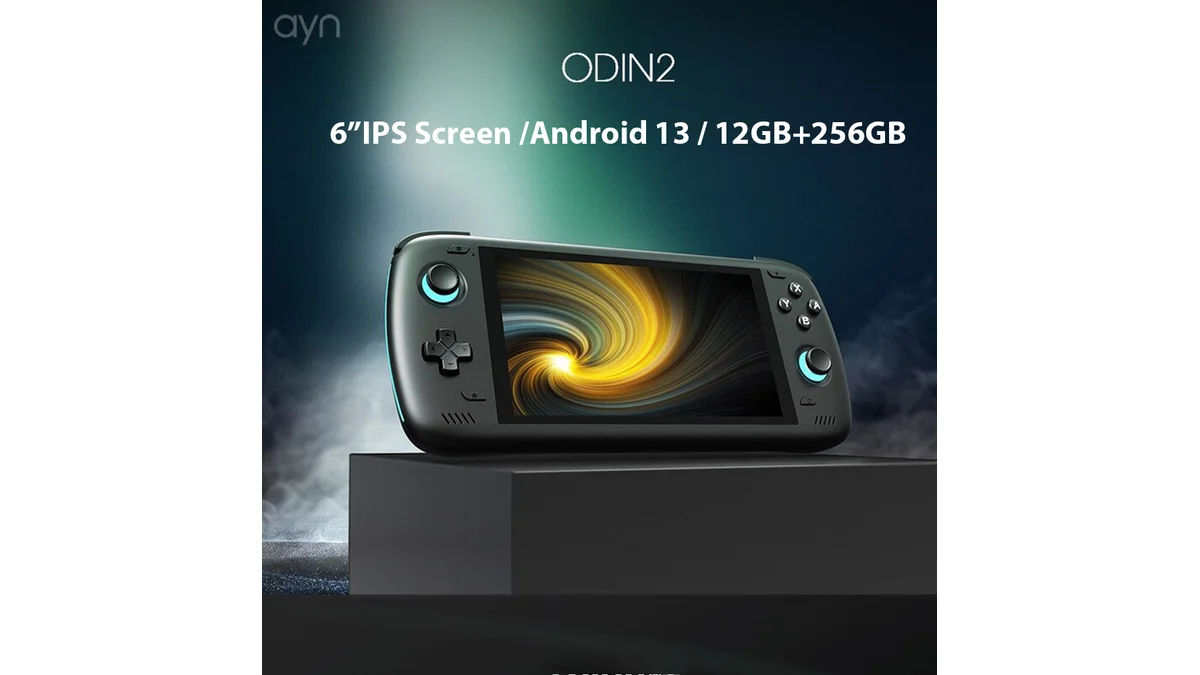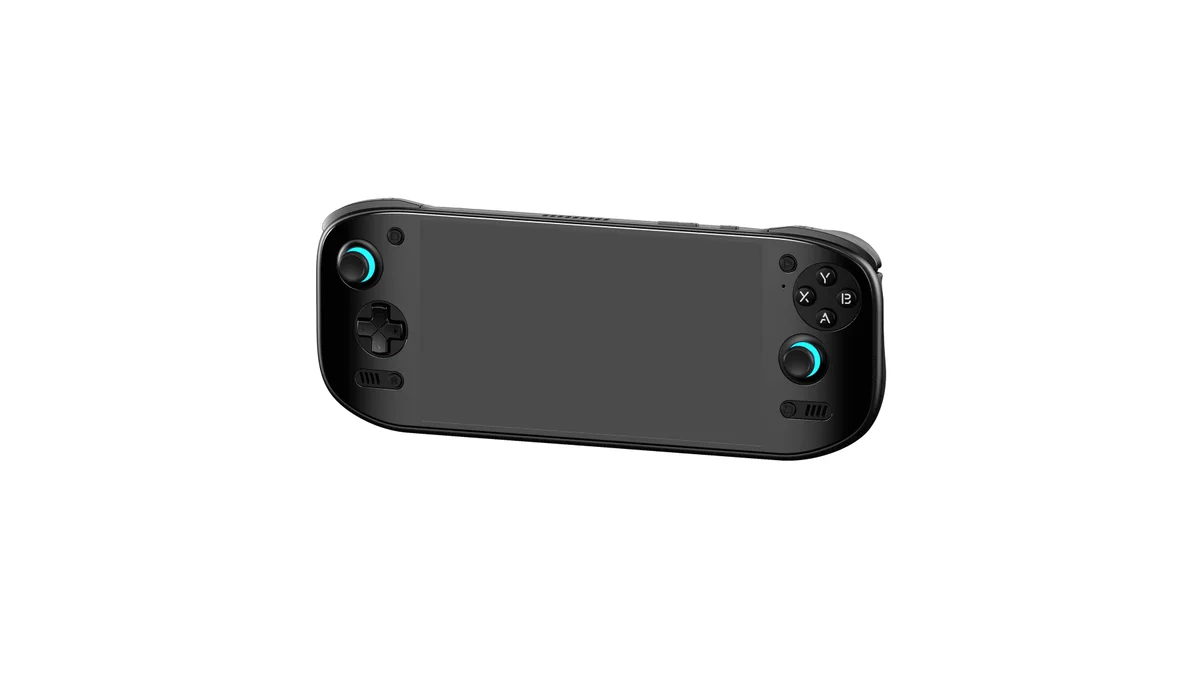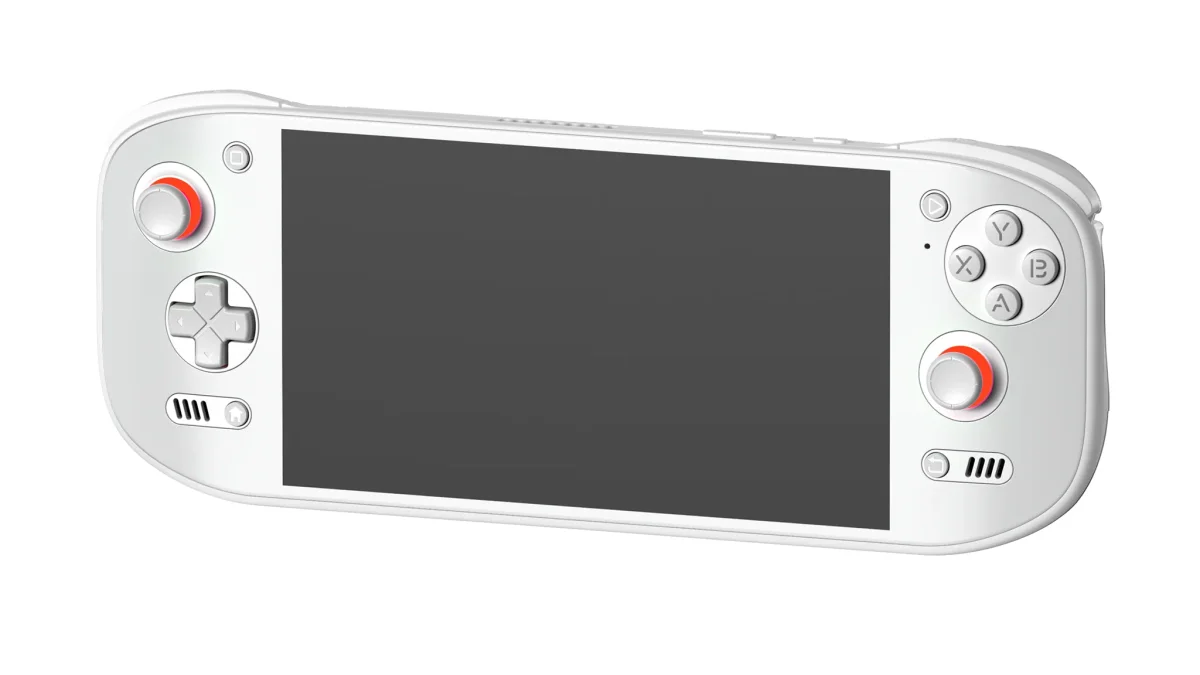
ROCKNIX is a mature Linux distribution that transforms high-end Android handhelds like the AYN Odin 2 into dedicated emulation powerhouses. Unlike Android-based solutions, ROCKNIX provides native Linux emulators including RPCS3 (PS3), Cemu (Wii U), and Xemu (Xbox)—systems that remain largely out of reach for Android emulation. The best part? Installation is completely non-destructive, leaving your Android setup untouched while enabling dual-boot functionality.
This guide walks you through every step of installing ROCKNIX on your Odin 2, from preparing your microSD card to booting into Linux for the first time. Whether you're looking to explore PS3 emulation, access the vast library of PortMaster PC ports, or simply experiment with Linux gaming, this tutorial has you covered.
Disclaimer: This process involves modifying bootloader files. While thoroughly tested and reversible, there's always risk with system-level changes. Proceed only if you're comfortable with technical procedures. The ROCKNIX team and this guide assume no liability for device issues.
What You'll Gain With ROCKNIX
ROCKNIX isn't just another emulation frontend—it's a complete operating system optimized for handheld gaming. Here's what makes it worth installing:
Emulation Capabilities Beyond Android
| System | Android Status | ROCKNIX Status |
|---|---|---|
| PS1/PSP/PS2 | Excellent (AetherSX2, PPSSPP) | Excellent (same cores) |
| GameCube/Wii | Excellent (Dolphin MMJR2) | Excellent (Dolphin-QT) |
| PS3 | Unplayable | Playable (RPCS3) |
| Wii U | Unavailable | Playable (Cemu) |
| Xbox | Unavailable | Playable (Xemu) |
| Nintendo 3DS | Good (Citra MMJ) | Good (Azahar) |
| Nintendo Switch | Limited (Skyline discontinued) | Limited (Yuzu removed) |
The standout additions are PS3, Wii U, and original Xbox emulation—systems that simply don't have viable Android solutions. While PS3 compatibility is limited to lighter titles (think Persona 5 rather than The Last of Us), having access to the library at all is remarkable for a handheld device.
PortMaster and PC Game Ports
ROCKNIX includes PortMaster—a curated collection of over 900 PC games ported to ARM Linux. This ranges from indie darlings like Hollow Knight, Celeste, and Stardew Valley to unexpected ports like Skyrim and Morrowind. Many of these run better than native Android versions due to Linux's lower overhead.
Wine/Box86 Compatibility
For games not officially ported, ROCKNIX supports Wine and Box86/Box64, enabling Windows x86 games to run through translation. Titles like Cuphead, Hades, and Tunic are playable, though compatibility varies and setup can require tweaking.
What You Need Before Starting
Required Hardware
- AYN Odin 2 (Base, Pro, Max, or Portal variants all supported)
- microSD card (256GB minimum, 512GB recommended for PS3/PortMaster)
- Recommended: Samsung EVO Select, SanDisk Extreme, or Samsung PRO Plus
- A1 or A2 rating important for loading performance
- USB-C cable (for potential troubleshooting/recovery)
Required Software
- Windows PC (for automated installation) OR
- Mac/Linux PC with Raspberry Pi Imager or BalenaEtcher (for manual method)
- 7-Zip or similar (for extracting .img.gz files)
Time Estimate
- Automated method: 30-45 minutes (mostly waiting for downloads/flashing)
- Manual method: 45-60 minutes
- First boot configuration: 15-20 minutes
Understanding the Installation Process
ROCKNIX runs entirely from your microSD card—nothing is written to internal storage. The key modification is installing a custom bootloader (ROCKNIX abl) alongside Android's bootloader. At startup, you'll hold Volume Down to choose which OS to boot.
The process in brief:
- Flash ROCKNIX Linux image to microSD card
- Copy bootloader files from microSD to internal storage
- Run root scripts to backup original bootloader and flash ROCKNIX bootloader
- Reboot and select ROCKNIX from the boot menu
This dual-boot approach means you can switch between Android and Linux at any time, getting the best of both worlds.
Method 1: Automated Installation (Windows Recommended)
The Image Burner tool handles download, extraction, and flashing automatically.
Step 1: Download Image Burner
Download the latest release from the ROCKNIX ImageBurner GitHub. As of April 2026, version 1.0.2 is current.
Step 2: Configure and Flash
- Insert your microSD card into your PC
- Open Image Burner (no installation required)
- Change Release from "Stable" to "Nightly" (Steam support and latest features require nightly builds)
- Select Device: Choose "AYN Odin 2" from the dropdown
- If Odin 2 isn't listed, select a device with the same chipset: SM8550 (Snapdragon 8 Gen 2)
- Select Drive: Choose your microSD card (double-check the drive letter!)
- Click "Flash" and wait for completion (15-30 minutes depending on card speed and internet)
The tool automatically downloads the correct nightly image, extracts it, and flashes to your SD card.
Step 3: Verify the Flash
Once complete, your microSD card will show multiple partitions. Windows may prompt to format unrecognized partitions—ignore these prompts. The Linux partitions are EXT4 format, which Windows can't read natively.
Method 2: Manual Installation (All Platforms)
If you prefer manual control or use Mac/Linux, follow this method.
Step 1: Download the Nightly Image
Visit nightly.rocknix.org or the GitHub releases page.
Locate the correct image for your chipset:
- AYN Odin 2: SM8550 (Snapdragon 8 Gen 2)
- Odin 1 Pro: SDM845 (Snapdragon 845)
Download the .img.gz file (typically 1.5-2GB compressed).
Step 2: Extract the Image
Extract the .img.gz file using 7-Zip, Keka (Mac), or command line:
Linux/Mac command: gunzip -c ROCKNIX-SM8550.aarch64-20260420-nightly.img.gz > rocknix_odin2.img
Step 3: Flash to microSD
Windows (Rufus):
- Download Rufus
- Select your microSD card under "Device"
- Click "SELECT" and choose the extracted .img file
- Click "START" and confirm to proceed
Mac/Linux (Raspberry Pi Imager):
- Download Raspberry Pi Imager
- Click "Choose OS" → "Use custom" → Select your .img file
- Click "Choose Storage" → Select microSD card
- Click "Write" and confirm
Mac/Linux (Command Line - Advanced):
Identify your SD card (be careful!):
- Mac: diskutil list
- Linux: lsblk
Flash (replace diskX with your SD card identifier):
- Mac: sudo dd if=rocknix_odin2.img of=/dev/rdiskX bs=1m
- Linux: sudo dd if=rocknix_odin2.img of=/dev/sdX bs=4M status=progress
Step 4: Verify Completion
Flashing takes 10-20 minutes. Once complete, the card will have multiple partitions—only the ROCKNIX_ABL folder will be visible on Windows.
Installing the Custom Bootloader
This is the critical step that enables dual-boot. You'll run two shell scripts with root privileges.
Step 1: Copy Bootloader Files
- Insert the flashed microSD card into your Odin 2
- Power on—you'll boot into Android normally
- Open the Files app (or any file manager with SD card access)
- Navigate to the microSD card root—you should see a folder named ROCKNIX_abl
- Copy this entire folder to the root of your Internal Storage (not the SD card)
- Location should be: /storage/emulated/0/ROCKNIX_abl/
Step 2: Run the Backup Script
Before modifying anything, you'll backup the original Android bootloader.
- Open Settings → Handheld Settings (or search "Handheld Settings" in Settings search)
- Tap "Run Script as Root"
- Navigate to the ROCKNIX_abl folder you copied
- Select and run backup_abl.sh
- Wait for completion—you'll see a terminal output showing the backup process
This creates a backup of your original bootloader in the ROCKNIX_abl folder. If anything goes wrong, you can restore it.
Step 3: Flash the ROCKNIX Bootloader
Immediately after the backup completes (without rebooting):
- In the same "Run Script as Root" interface
- Select and run flash_abl.sh
- Wait for completion—this replaces the bootloader with the ROCKNIX version
Alternative for Odin 2 Firmware 355+: Users on firmware 355 or newer have reported success with a simpler method:
- Flash ROCKNIX to SD card
- Insert SD card
- Hold Volume Down + Power while booting
- Select "boot" then choose "Loader" (not "Android")
- Select your device model and boot ROCKNIX
However, the full bootloader flash method remains recommended for reliability.
First Boot into ROCKNIX
With the bootloader installed, you're ready to enter Linux.
Step 1: Boot to Bootloader Menu
- Power off your Odin 2 completely (hold power, select "Power off")
- Press and hold Volume Down
- While holding Volume Down, press and hold Power
- Continue holding both buttons until you see the fastboot menu (approximately 3-5 seconds)
- Release both buttons
Step 2: Select Your Device
You'll see the ROCKNIX abl (Android Boot Loader) menu:
- Navigate to "Set the Device" using Volume Up/Down
- Press Power to select
- Choose your exact device model from the list:
- Odin 2
- Odin 2 Pro
- Odin 2 Max
- Odin 2 Portal
- Confirm your selection
Step 3: Boot ROCKNIX
- Verify "Boot Mode" shows "Linux" (not "Android")
- Navigate to "START"
- Press Power
The screen will go black for 10-30 seconds—this is normal. You'll then see the ROCKNIX boot splash followed by the EmulationStation frontend loading.
Step 4: Initial Configuration
First Boot Setup:
- Connect to WiFi via Main Menu → Network Settings
- Required for scraping artwork and system updates
- Set the date/time in System Settings
- Configure controller (should auto-detect, but verify button mapping)
Controller LED Settings (Optional):
- Go to Controller & Bluetooth Settings → Joystick LEDs
- Options: Battery level indicator, solid color, or off
Adding Games to ROCKNIX
ROCKNIX uses the EXT4 filesystem, which Windows and Mac cannot read natively. You have three transfer methods:
Method 1: Network Transfer (Recommended)
ROCKNIX runs an SMB server for easy network transfers:
- Ensure your Odin 2 and PC are on the same WiFi network
- In ROCKNIX: Main Menu → Network Settings → Enable SMB (if not already on)
- On your PC: Open file explorer and navigate to \\ROCKNIX or \\rocknix (IP address also works)
- Copy ROMs to the appropriate system folders (e.g., /roms/psx/ for PS1 games)
For detailed instructions, see the ROCKNIX SMB guide.
Method 2: USB Storage
Fastest for bulk transfers:
- Load games onto a USB drive (FAT32, exFAT, or EXT4 formatted)
- Connect USB drive to Odin 2 via USB-C OTG adapter or hub
- In ROCKNIX: Open File Manager from the Main Menu
- Navigate to the USB drive and copy files to /roms/ folders
Method 3: Second microSD Card (If Supported)
Some devices support dual SD cards:
- Format second SD card as FAT32 or exFAT
- Load ROMs onto the second card
- ROCKNIX will auto-mount and detect games
Required BIOS Files
Place BIOS files in /roms/bios/ (create the folder if needed):
| System | Required Files | Location |
|---|---|---|
| PS1 | scph5501.bin (or other region BIOS) | /roms/bios/ |
| PS2 | SCPH-70012.bin (for AetherSX2) | /roms/bios/aethersx2/bios/ |
| GameCube | IPL.bin (optional but recommended) | /roms/bios/ |
| Sega CD | bios_CD_U.bin, bios_CD_E.bin, bios_CD_J.bin | /roms/bios/ |
| Saturn | sega_101.bin, mpr-17933.bin | /roms/bios/ |
| Neo Geo | neogeo.zip | /roms/bios/ AND roms folder |
| TurboGrafx-CD | syscard1.pce, syscard2.pce, syscard3.pce | /roms/bios/ |
| Xbox | Complex_4627v1.03.bin, mcpx_1.0.bin | /roms/bios/xemu/bios/ |
| Game Boy | gb_bios.bin, gbc_bios.bin | /roms/bios/ |
| Game Boy Advance | gba_bios.bin | /roms/bios/ |
Note: BIOS files are copyrighted material. You must dump them from your own legally owned hardware.
Essential Hotkeys and Controls
Global System Hotkeys
| Combo | Action |
|---|---|
| L1 + START + SELECT | Exit any emulator/app |
| HOME + Vol + | Brightness up |
| HOME + Vol - | Brightness down |
| START + Vol + | Joystick LED on |
| START + Vol - | Joystick LED off |
| HOME + START + Vol + | WiFi enable |
| HOME + START + Vol - | WiFi disable |
RetroArch Hotkeys
| Combo | Action |
|---|---|
| HOME + START (×2) | Quit game |
| HOME + R1 | Save state |
| HOME + L1 | Load state |
| HOME + X | Open RetroArch menu |
| HOME + B | Reset game |
| HOME + Y | Show FPS |
| HOME + A | Screenshot |
| HOME + R2 | Fast-forward |
Standalone Emulator Hotkeys
Dolphin (GameCube/Wii):
- HOME + START: Quit
- HOME + R1: Save state
- HOME + L1: Load state
- HOME + Y: Change internal resolution
- HOME + R2: Fast-forward
DuckStation (PS1):
- HOME + R1: Save state
- HOME + L1: Load state
- HOME + R2: Fast-forward
- HOME + X: Open menu
Troubleshooting Common Issues
Issue: Black Screen After Selecting "START"
Solution:
- Force reboot (hold power 10 seconds)
- Re-enter bootloader (Vol Down + Power)
- Verify "Set the Device" has the correct model selected
- Try switching USB charger/cable—some chargers interfere with boot
Issue: Stuck on Android Boot Logo
Solution:
- Force power off
- Remove microSD card
- Power on normally to Android
- Re-run the flash_abl.sh script in Handheld Settings
Issue: Can't Find "Run Script as Root" Option
Solution:
- AYANEO devices: Check AYASETTINGS → Device
- Some firmware versions: Install a root-enabled file manager like MiXplorer and run scripts from there
- Verify your Odin 2 is actually rooted (required for bootloader modification)
Issue: Games Not Appearing in EmulationStation
Solution:
- Verify ROMs are in correct subfolders (/roms/psx/, /roms/snes/, etc.)
- Restart EmulationStation (Main Menu → Quit → Restart EmulationStation)
- Check file extensions match emulator requirements (.iso, .cue, .chd, etc.)
- For PS1 games with .bin/.cue, ensure both files are present
Issue: PS3/GameCube Games Run Poorly
Solution:
- These systems push the Odin 2 to its limits. Try:
- Lower internal resolution in emulator settings
- Disable VSync in standalone emulators
- Enable performance governor in ROCKNIX settings
- Ensure active cooling is working (fan should spin under load)
Switching Back to Android
To return to Android at any time:
- In ROCKNIX: Main Menu → Quit → Reboot System
- At the bootloader menu: Change "Boot Mode" to "Android"
- Select "START"
Or simply power off, remove the microSD card, and power on—without the ROCKNIX card inserted, the device boots to Android automatically.
Uninstalling ROCKNIX (Restoring Stock)
To completely remove ROCKNIX and restore factory bootloader:
- Boot to Android (remove ROCKNIX SD card if needed)
- Open Handheld Settings → Run Script as Root
- Navigate to the ROCKNIX_abl folder
- Run restore_abl.sh
- Reboot
You can then delete the ROCKNIX_abl folder and format the microSD card for normal use.
Next Steps: Explore PortMaster and Advanced Features
Once ROCKNIX is running, explore these features:
Install PortMaster Games
- In ROCKNIX: Main Menu → PortMaster
- Browse the library of 900+ ported games
- Select and install directly—no PC required
Popular recommendations:
- Hollow Knight
- Celeste
- Stardew Valley
- Skyrim (via OpenMW)
- Morrowind (via OpenMW)
- Fallout 1 & 2
Enable Steam (Nightly Builds Only)
ROCKNIX nightly builds include Steam integration:
- Connect to WiFi
- Go to System Settings → Services
- Enable Steam
- Login with your Steam credentials
Steam games appear directly in EmulationStation alongside your ROMs. Check ProtonDB for game compatibility.
Update ROCKNIX
- Connect to WiFi
- Main Menu → System Settings → Updates
- Check for updates
OTA updates download and install automatically while preserving your settings and ROMs.
Final Thoughts
ROCKNIX transforms the AYN Odin 2 from an excellent Android handheld into something approaching a portable PC gaming device. The addition of PS3, Wii U, and Xbox emulation—plus the massive PortMaster library—significantly expands what the hardware can achieve.
The installation process requires attention to detail, but the ROCKNIX team's documentation and the active Discord community provide support if you encounter issues. Once configured, the dual-boot system works seamlessly, letting you choose Android for mobile gaming and Linux for serious emulation.
For retro gaming enthusiasts who've already pushed their Odin 2 to its Android limits, ROCKNIX represents the next frontier—one that's absolutely worth exploring.
Frequently Asked Questions
How do I put ROCKNIX on an SD card?
Use the ROCKNIX Image Burner tool on Windows (download from GitHub) for automatic flashing, or manually flash nightly .img.gz files using Raspberry Pi Imager or Rufus. The Image Burner is recommended as it downloads the correct nightly build for your device automatically.
What partition format does ROCKNIX use on SD cards?
ROCKNIX uses EXT4 for the main OS partition (not readable by Windows) and FAT32 for the boot partition. The ROMs folder is also EXT4. Windows cannot natively read these partitions—use SMB network transfer or USB storage methods to add games.
How do I boot into ROCKNIX after installation?
Power off completely, then hold Volume Down + Power until the fastboot menu appears. Select "Set the Device" to choose your model, ensure "Boot Mode" is set to Linux, then select START. The screen will go black for 10-30 seconds before the ROCKNIX splash appears.
What can the Odin 2 emulate on ROCKNIX?
The Odin 2 on ROCKNIX handles everything from 8-bit systems through PS2, GameCube, Wii, and 3DS at full speed with upscaling. It also enables PS3 (RPCS3), Wii U (Cemu), and original Xbox (Xemu) emulation—systems unavailable on Android. PS3 compatibility is limited to lighter titles; demanding games like The Last of Us remain unplayable.
Is ROCKNIX installation reversible?
Yes—completely. The installation doesn't modify internal Android partitions. To remove ROCKNIX, boot to Android, run the restore_abl.sh script from the ROCKNIX_abl folder (created during installation), then delete the folder and format the SD card.
Featured image: Retro Handhelds. Product images and ROCKNIX interface screenshots used under fair use for editorial and instructional purposes.